
Pokémon Arena 2D runs in a browser and offers touch controls as well as keyboard and gamepad input. A game with movement, facing, four moves, dodge, and teammate switching can feel very different on a phone from the same game on a desktop monitor. The purpose of setup is to keep important information visible and controls predictable. This guide provides a method to evaluate your device, orientation, audio, aiming, camera, and comfort settings. Menu labels and options can change; use the live game's settings screen as the final reference.
The embedded game on this site is loaded from the source at pokemonarena2d.online/game/. The iframe gives you a quick way to play alongside the guides, while the “Open full tab” link above it gives the game more browser space. On a phone, start by comparing both views. If the embedded frame compresses the battle HUD or touch targets, open the source game in a full tab. A wider, easier-to-read field may improve play more than any character selection.
Begin with orientation and usable screen space
For a phone, try landscape orientation before the first serious battle. A horizontal arena generally benefits from a wider view, and your hands have more room to separate movement from action buttons. However, actual comfort depends on device size, browser bars, and the current implementation. Do not force landscape if the game's touch targets or text become harder for you to read. Test one minute of movement in both orientations and choose the one in which you can see your creature, opponent, health, and available actions without shifting your grip constantly.
Check browser zoom. If you have zoomed the page, the iframe may require extra scrolling or a touch button may sit near the edge of the screen. Use the browser's normal zoom level as a baseline, then adjust only if it improves readability without hiding controls. Watch for dynamic address bars on mobile browsers. When the bar expands or collapses, the visible area can change while you are playing. A full tab or browser fullscreen mode, if available, may give a more stable viewport. The exact behavior depends on your browser and device, so evaluate it on the device you will actually use.
Hold the device in a grip that leaves both thumbs free to reach their usual controls. Do not judge the layout by whether you can tap one button while stationary. Judge it by whether you can move, aim, and tap a move while watching the opponent. If your hand blocks the health bar or a threat at the side of the arena, try shifting the grip or using a larger screen. A phone stand and gamepad may help if your device supports the game's input. The goal is to reduce accidental inputs, not to copy another player's exact hand position.
Compare iframe and full-tab play
The iframe is convenient because the game and this guide share a page. It also depends on the source site allowing embedding and on your browser accepting the source game's resources. If the frame stays blank, use the direct link. If the game loads but touch controls are cramped, compare the full tab before assuming the game's mobile support is inadequate. The source game handles its own progress; this guide site does not create an account or save your battle state.
When testing the two views, use the same short exercise. Enter a low-pressure Quick Battle, move a complete circle, trigger one move, dodge once, and switch once. Observe how often you miss a button, lose sight of the opponent, or accidentally scroll the outer page. If the iframe produces these errors and the full tab does not, use the full tab for serious play. If both feel similar, choose whichever lets you keep the guide nearby without interrupting combat. Avoid changing team and CPU difficulty at the same time; you want the comparison to be about display and input.
Browser restrictions can affect audio or focus. If the game seems unresponsive to a key, tap or click inside its frame once and try again. If sound is silent, verify your device volume, browser mute state, and the game's audio settings. If a full tab works while the embed does not, the source game's current embedding policy or browser behavior may be the cause. The game link is always the fallback. Do not repeatedly refresh a live story fight without considering that the source game controls its own save behavior.
Tune controls one variable at a time
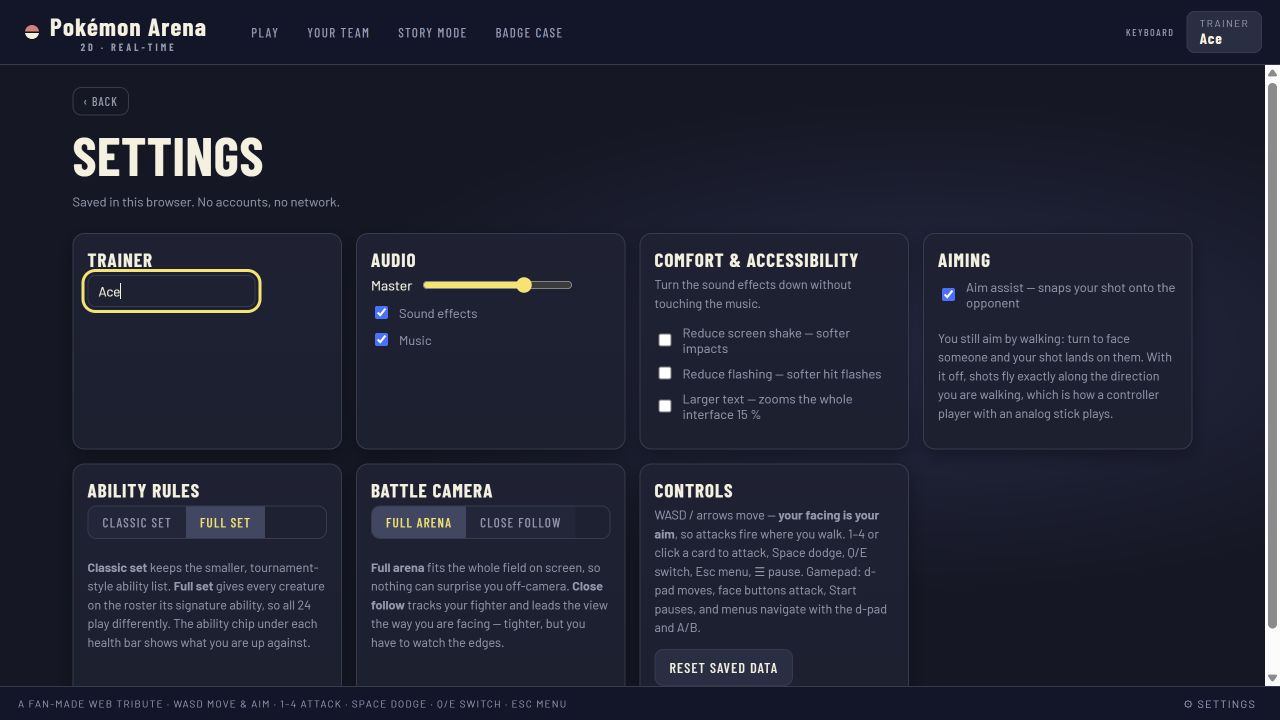
The game's settings screen includes categories for audio, comfort, aiming, ability rules, and camera in the captured build. Open it before you attempt to optimize your team around a control feel you dislike. Start with defaults. Play one short round, identify a single recurring input problem, then change one relevant setting if the menu offers it. A setting change is useful when it addresses an observed problem. Changing several at once makes it difficult to know what helped.
For touch input, distinguish three failures. A reach failure means you cannot tap the correct control comfortably while moving. A recognition failure means you tap but cannot tell whether the action registered. A timing failure means the control works, but you activate it at the wrong moment. Reach may call for a different grip or display. Recognition may call for a clearer view of cooldowns or effects. Timing calls for practice, not necessarily a settings change. Identifying the failure avoids endless menu adjustments when the underlying issue is a habit.
For keyboard input, keep a stable hand position. Movement uses WASD or arrow keys, moves use 1 through 4, Space dodges, Q and E switch, and Esc pauses in the checked build. Choose the movement cluster that lets you reach actions without looking down constantly. If a key combination feels awkward, run a ten-second drill rather than trying to learn it during a close story challenge. Remember that the iframe needs focus before keyboard controls reach the game. A click outside the frame can redirect your next key to the page or browser.
For gamepad input, read the live game's current control help. Controller button mapping can vary by browser and hardware. Test every required action in a low-pressure battle, including pause and switching, before relying on the pad for Story Mode. If one input does not register, check connection and browser support on the device. Do not assume that a character is weak because an unfamiliar controller layout caused missed attacks. Keep your comparison fair by using the same team and arena as your keyboard or touch trial.
Make the battle readable
Combat decisions depend on seeing the active creature, attack effects, health, PP, and status or cooldown information. If you can only see the center of the screen clearly, you may spend resources without realizing it. In settings, inspect any camera or comfort choices the current build presents. Test each against a specific visual task: Can you locate both fighters after a switch? Can you tell when a move is ready? Can you see the nearest cover while moving? A visual setting is helpful if it improves one of those tasks without hiding another essential signal.
Audio can provide useful cues, but it should not be your only source of information. Some players play muted, use small speakers, or are in noisy environments. Make sure you can identify important changes from visual feedback as well. If an effect is hard to distinguish, slow down the exchange and watch the HUD after using a move. Do not infer a hit solely from a large effect. Confirm the opponent's response or health change when the display makes that clear. This is a good habit on any device, not only on mobile.
Brightness and glare matter on a phone. Avoid choosing an arena solely because it looks attractive if its colors become hard to read in your environment. A different room, display brightness, or browser view may help. If you use accessibility features such as larger system text, check whether the game's canvas and controls scale with them. The source game may not follow every system setting. Where it does not, selecting a larger device or full tab may be more effective. Comfortable play is a practical requirement for accurate decisions, not a cosmetic extra.
A five-minute mobile calibration
Spend the first minute moving without attacking. Trace a rectangle around a safe portion of the arena and stop at each corner. Notice whether the movement control responds consistently and whether your finger drifts. Spend the second minute facing the opponent without rushing it. If direction of movement sets aim, practice turning only as much as needed. Spend the third minute using one move at a time from a clear lane. Watch the HUD and move effect. Spend the fourth minute dodging only after a visible threat. Spend the fifth minute switching once and finding a safe position for the arriving teammate.
If any minute feels unreliable, repeat that minute before increasing CPU difficulty. This is not a test of how fast you can press buttons. It is a test of whether the device communicates your intentions to the game. A stable two-second decision can be better than a rapid series of accidental actions. On a phone, the extra screen space of a full tab may make this calibration easier. On a tablet, the control targets may be farther apart; adjust your grip and repeat the same drill.
Write down the one input you still miss most often. Practice that input in isolation for another minute. If it remains unreliable, look for a settings option, change orientation, or try another input device. Do not change your entire lineup to accommodate a touch problem before testing the control itself. Once the input feels consistent, return to a normal match and see whether the improvement holds under pressure. If it does not, the next step is a pressure drill rather than another display adjustment.
Avoid common setup traps
The first trap is changing many options after a loss. A new camera feel, new team, new arena, and higher difficulty all at once create too many explanations for the next result. Change one variable and play enough to understand it. The second trap is judging a device from a single bad iframe load. Try the full-tab link and verify that the source game itself is available. The third trap is playing with obscured HUD information. If you cannot see your resources, you cannot manage them reliably, no matter how good your timing feels.
Another trap is treating settings as a substitute for map knowledge. A wider view may make an escape route visible, but you still need to choose it. A more comfortable control may reduce missed dodges, but you still need to wait for a real threat. Use setup to remove friction, then practice the decisions. If you continue to lose in the same position, record the position and replay the approach. That evidence is more useful than searching for a perfect menu option.
Finally, pause when fatigue changes your inputs. Touch controls can become less accurate when your hands are tired, and keyboard play can become rushed after repeated losses. Take a short break, return to an easy battle, and check whether your basic movement still feels intentional. The game is meant to be played, not endured. The best settings are those that let you see, decide, and act with confidence across several rounds, not the settings that make one lucky win feel spectacular.